Exporting Your Wallet
In this tutorial, we will export you wallet including all keys to access your accounts and funds, into a single JSON-formated file. Note that your private keys will be encrypted and you will be required to provide the corresponding pass phrase when importing your funds into BitShares 2.0.
BitShares 1.0 Full Client
Since the snapshot has taken place already, all you need to do now to get access to your funds in BitShares 2.0 is described in the following.
Firstly, you need to upgrade your BitShares client to version 0.9.3c. To do the upgrade you need to:
download the installation file from the bitshares webpage
uninstall your previous version of the BitShares client
install the new version
Synchronize your Wallet
Note
If you see all your funds in your wallet, you can safely skip this paragraph.
We now need to sync with the blockchain. This is only necessary with if you think that since the last time you did the syncing there have been some new transactions involving any of your accounts.
Legacy BitShares 0.9.3 Blockchain Download
You can see the syncing progress from the status bar or from the info
command in the console (account list->advanced settings->console).
After having synced the blockchain, your wallet will automatically attempt to
rescan the blockchain for new transcations. Depending on the amount of accounts
in your wallet, this steps should only take very few minutes.
Since BitShares 0.9.3c, we have a Graphene compatible Export Keys function that can be accessed in two ways:
by accessing it in the main menu
by issuing a command in the console.
Export via the console
navigate to the console: Account List -> Advanced Settings -> Console
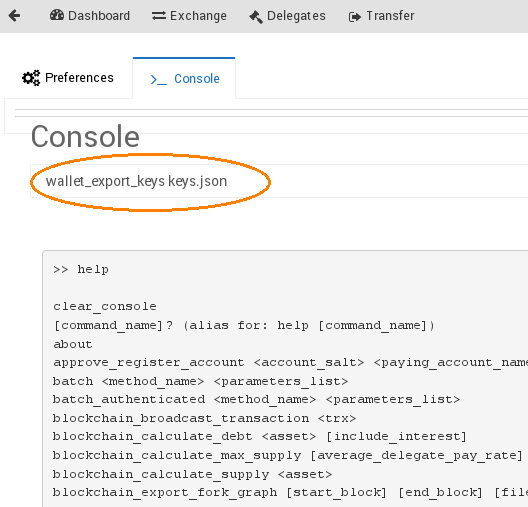
type: wallet_export_keys [full path to the file]/[file name].json e.g. on Windows:
wallet_export_keys C:\Users\[your user name]\Desktop\keys.jsone.g. on Mac:wallet_export_keys /Users/[your user name]/Desktop/keys.jsone.g. on Linux:wallet_export_keys /home/[your user name]/Desktop/keys.jsonPlease replace
[your user name]with your Windows account name.and hit Enter
Note
The exported wallet file will be encrypted with your pass phrase! Make sure to remember it when trying to use that file again!
Note
If you are on Windows and your file path tries to access the C drive directly (e.g. C:keys.json) you might need to run the BitShares client as an administrator. So the least complicated option will be to aim for the desktop as in the example above.
wallet.bitshares.org
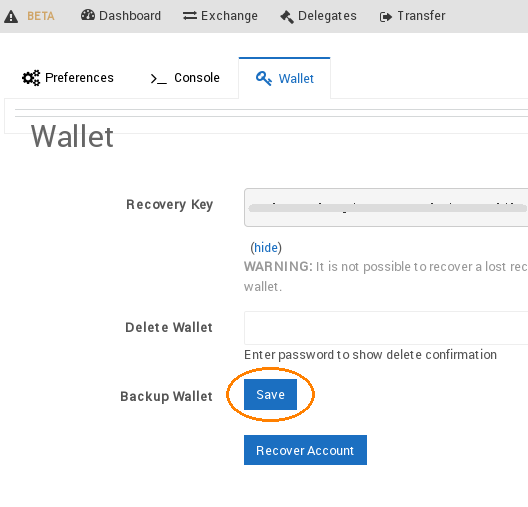
The keys of the web wallet can be exported simply by downloading a backup wallet. It can be obtained from the web wallet’s preferences: (Account List->Advanced Settings->Wallet).